Set Up Google Search Console Step by Step: The Complete Guide
Set up Google Search Console step by step: Domain vs URL-prefix property, DNS validation, sitemap submission, and indexation. Key methods and native limits to know before you start.

Setting up Google Search Console correctly from the start determines the quality of all your subsequent SEO analyses. This free Google tool is the foundation of any organic visibility strategy: it provides the only reliable server-side data (never blocked by an adblocker, never dependent on a JS script) on how your site appears in the SERPs.
This guide walks you through the step-by-step method to verify your property, submit your sitemap, monitor indexing, and leverage your first metrics — with a focus on common pitfalls and native limitations you need to know before going further.
Key Takeaways
- Google Search Console is free, but history is capped at 16 months and exports are limited to 1,000 queries per report — critical blind spots when analyzing the long tail and seasonality.
- Prefer a Domain property (DNS verification) over a URL Prefix property: consolidated view across all subdomains and protocols, fragmentation avoided.
- GSC detects issues after traffic loss has occurred. To get ahead of problems, you need to either build a regular export workflow or rely on a tool that continuously monitors declining pages.
- Submit your sitemap as soon as verification is complete and segment it by content type (products, articles, categories) beyond a few thousand URLs — strict limit of 50,000 URLs or 50 MB per file.
Why Setting Up Google Search Console Is Non-Negotiable
Google Search Console is the official communication channel between your site and Google’s index. It’s where you read what Googlebot actually sees: indexed pages, crawl errors (4xx, 5xx codes), index coverage, real search performance (clicks, impressions, CTR, average position), mobile issues, and Core Web Vitals.
No third-party solution replaces GSC for these signals. All serious SEO tools consume the Search Analytics API or GSC’s BigQuery bulk export in the background — not the other way around.
That said, the native interface has three structural limitations that become apparent as your site grows:
- 16 months of rolling history. Comparing Black Friday 2024 vs. 2026 in the UI is impossible. Older data is permanently lost.
- 1,000 rows per report. The long tail (60 to 70% of organic traffic on most sites) remains invisible in the interface.
- Reactive detection. GSC displays trend lines but doesn’t trigger alerts on declining pages before the drop becomes visible.
Most mature SEO teams end up building — or subscribing to — an analytics layer on top of GSC. Not to replace the tool, but to fully leverage the data it delivers.
Setting Up Your Property in Google Search Console
The first step is declaring your analysis scope and proving that you own the site.
Domain Property vs. URL Prefix: Making the Right Choice
The type of property you choose determines the granularity of the data collected. A mistake here fragments your analysis and complicates performance tracking.
| Characteristic | Domain Property | URL Prefix Property |
|---|---|---|
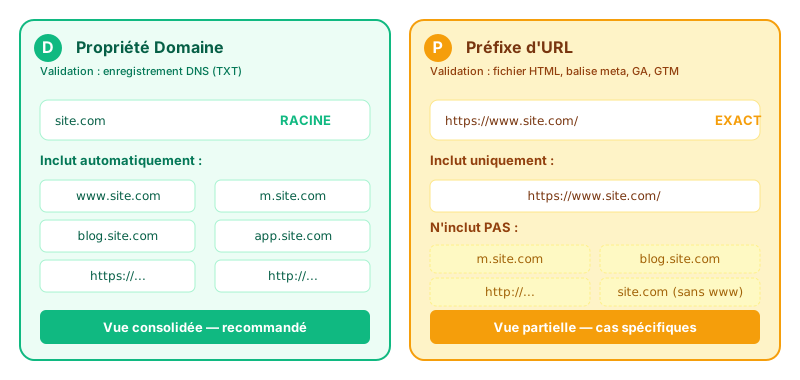
| Coverage scope | All subdomains (www, m, blog) and protocols (http, https) | Only the exact URL entered (e.g., https://www.site.com/) |
| Verification method | DNS record (TXT or CNAME) required | HTML file, meta tag, Google Analytics, Google Tag Manager |
| Ideal use case | Consolidated view of the company’s entire web ecosystem | Isolated tracking of a subdomain or during a migration |
| Technical complexity | Moderate (registrar access required) | Low (CMS or FTP access sufficient) |
Default recommendation: the Domain property, unless you explicitly need to isolate a subdomain (e.g., monitoring blog.site.com separately from site.com during a redesign).
Setting Up a Domain Property and Verifying Ownership
The Domain property is the industry standard for a consolidated view. You must prove ownership of the domain name through your DNS provider (Cloudflare, AWS Route 53, GoDaddy, Namecheap, etc.).
Official Google documentation.
Here’s the step-by-step method:
- On the Search Console welcome page, select Domain and enter your bare domain name (e.g.,
site.com, withouthttps://orwww). - Copy the TXT string generated by Google (format:
google-site-verification=...). - Log in to your registrar’s dashboard and navigate to DNS zone management.
- Create a TXT record, leave the name/host field blank (or use
@depending on your registrar), and paste the provided value. - Set the TTL to 3,600 seconds (1 hour).
- Wait 5 to 30 minutes for DNS propagation, then click Verify in GSC.
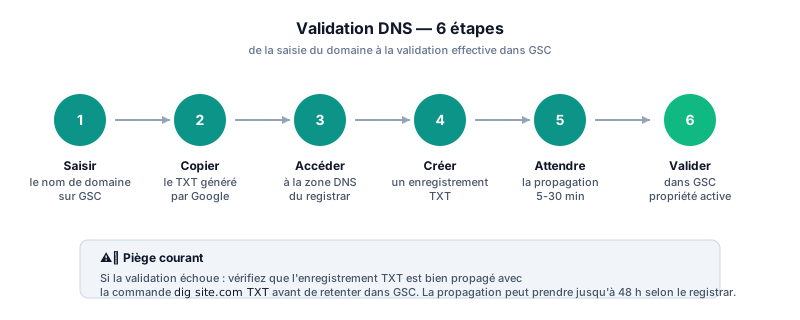
⚠️ Common pitfall: if verification fails, check with a tool like dig site.com TXT to confirm the record has propagated. Some registrars display the record as “active” before it has actually been pushed to all their DNS servers.
Setting Up a URL Prefix Property and Completing Verification
If you don’t have access to DNS settings, the URL prefix method offers practical alternatives. Enter the exact absolute URL (with the https:// protocol and www if applicable) to create the property.
Available verification methods:
- HTML file: download the
.htmlfile provided by Google and place it at the root of your server (via FTP/SFTP). This is the most robust method outside of DNS. - Meta tag: copy the
<meta name="google-site-verification" content="...">tag and insert it in the<head>section of your site. - Google Analytics / Google Tag Manager: if the tracking code is already present in the
<head>, verification can be instantaneous — provided the connected Google account has the appropriate permissions on the GA/GTM property.
Leveraging Search Console Data to Boost Your SEO
Once the tool is configured, extracting and interpreting data becomes the core of your organic acquisition strategy.
Submitting Your Sitemap to Accelerate Indexing
The XML sitemap acts as a roadmap for Googlebot: it outlines the site’s structure and prioritizes content to crawl. Open the Sitemaps tab in the side menu, enter your file’s URL (typically https://www.site.com/sitemap.xml or sitemap_index.xml on WordPress) and click Submit.
For e-commerce sites or media outlets generating thousands of pages, segment your sitemaps by content type (products, articles, authors, categories) while respecting the strict limit of 50,000 URLs or 50 MB uncompressed per file. Segmentation makes it easier to identify areas of the site with low indexing rates: a “products” sitemap at 12% indexing and an “articles” sitemap at 95% immediately points you toward the right diagnosis.
Monitoring Indexing and Resolving Detected Issues
The Pages report details the ratio between indexed URLs and URLs excluded from the index. The most common exclusion statuses:
- Crawled - currently not indexed: Google has read the page but doesn’t consider it useful enough to index. A classic symptom of thin or redundant content.
- Discovered - currently not indexed: Google knows the URL but hasn’t crawled it — often a signal of a saturated crawl budget.
- Duplicate without user-selected canonical: a canonicalization conflict to fix on the CMS side.
- Page with redirect: normal during a migration, problematic if too numerous.
- Blocked by robots.txt or noindex: worth checking — sometimes intentional, sometimes a bug.
The problem with native GSC is that these errors are reported reactively, often after traffic loss has already occurred. Most SEO drops don’t come from a sudden crash but from an accumulation of small losses across dozens of pages — losses that no native report triggers an alert for.
💡 See your declining pages before the drop, across your full history: Sauvegarder mon historique GSC →
Analyzing Your Search Performance
The Performance tab is the nerve center of organic analysis. It cross-references user queries with your ranking pages, broken down by device, country, and appearance type (web result, image, video, news, Discover).
Four metrics drive the analysis:
- Impressions: the number of times the URL appeared in a SERP (even if not scrolled to, for standard search).
- Clicks: the number of interactions that brought a user to your site (excludes internal sitelinks).
- CTR: the clicks-to-impressions ratio. The attractiveness of your snippet (Title, meta description, structured data) relative to the competition.
- Average position: the average ranking of the best-ranked URL for a given query.
⚠️ The native average position is a simple unweighted arithmetic mean. If you rank position 1 on a query with 10 impressions and position 100 on a query with 10,000 impressions, the raw average will smooth over the critical drop. For serious tracking, you need an impression-weighted position — calculated outside the UI (export, API, or third-party tool).
Beyond Native GSC: Why a Third-Party Tool Becomes Necessary
On a small or medium-sized site, the GSC UI is sufficient. Beyond that, three ceilings block analysis:
- 1,000 rows per report: mapping the long tail is impossible. Workaround: Search Analytics API (free, requires code) or BigQuery bulk export (official since 2023).
- 16 months of history: older data is erased. To preserve history, you need to either archive it yourself via daily BigQuery exports or use a tool that does it for you.
- No delta sorting: identifying the 10 pages that dropped the most last week means exporting to CSV, opening Excel, creating a delta formula, and re-sorting — every single week.
These three limitations are why most mature teams end up building — or subscribing to — an analytics layer on top of GSC.
Conclusion: Set Up GSC, Then Go Further
Setting up Google Search Console step by step is just the starting point of your SEO infrastructure. The tool remains non-negotiable as an organic source of truth: no third-party solution sees what Google sees from deep within its index.
But its surface — an interface capped at 1,000 rows, 16 months of history, limited sorting — hasn’t evolved at the pace of the sites it’s supposed to monitor. The real question isn’t “GSC vs. other tools” but how to turn monthly check-ins into continuous monitoring: a cadence (weekly, not monthly), a method (branded/non-branded segmentation, drill-down by signal), and an analytics layer that goes beyond native limitations as your site grows.
Frequently Asked Questions (FAQ)
How does Google Search Console work?
The tool collects data from Googlebot’s crawling activity and user interactions in the SERPs, then presents it in the form of technical reports (indexing, performance, Core Web Vitals, mobile usability, etc.).
Do you need technical knowledge to set up GSC?
No. The URL prefix method via HTML file or CMS plugin is accessible to beginners. DNS record verification requires registrar access but remains well within reach for non-developer profiles.
Is Google Search Console free?
Yes, the service is entirely free. The only trade-off is Google’s commitment to providing the tool “as is” — with no strict SLA or guaranteed support.
Do you need to add each subdomain separately?
With a Domain property, all subdomains are automatically included. With a URL Prefix property, each subdomain (blog, customer portal, etc.) must be configured and verified separately.
How long before you see the first data after verification?
GSC displays the first rows of the Performance report 24 to 48 hours after verification. The Pages report (indexing) can take several days to fully populate, especially on a site that has never been indexed before.
Essayez sur ce cas d'usage
Conservez votre historique GSC au-delà des 16 mois
Google Search Console efface vos données passées 16 mois. SearchLens archive votre historique complet en continu, dès l'onboarding.
Sauvegarder mon historique GSC →Essai 7 jours · pas de carte bancaire · annulation en 1 clic.
- Backfill automatique des 16 mois disponibles à la connexion
- Sauvegarde quotidienne de l'ensemble des nouvelles lignes
- Bouton Max sur toutes les courbes (au-delà des 16 mois)
À lire également
Google Search Console: Complete Tutorial to Monitor Your Site Health
Complete Google Search Console tutorial: setup, property verification, key reports and concrete SEO optimizations to master your organic visibility from day one.
How to Analyze Google Search Console Performance: The Complete Guide
Master Google Search Console's Performance report: 4 key metrics explained, weighted average position, quick wins from page 2, and traffic-drop detection before it hits.

Google Search Console: The Complete Guide to Mastering Your SEO in 2026
Everything you need to know about Google Search Console: setup, key metrics, tool limitations, and practical workflows to turn raw data into actionable SEO decisions.